
Install the Browser Notary
Load the extension in Firefox or Chrome, anchor it to a desktop notary, and check its state in the popup.
The Browser Notary is one Manifest V3 extension built for both browsers from the same source. You need:
- Firefox 140+ (Android 142+) or Chrome 111+. Edge takes the Chrome build.
- Optionally, a Desktop Notary on the same machine. With one, the extension’s signatures trace back to the TPM or Secure Enclave. Without one, the browser self-certifies.
1. Get the package
Packages are attached to the
vcomp-notary-browser releases,
and to every run of its Release workflow (Actions → Release → Run workflow) as a build
artifact. A release version is X.Y.Z or X.Y.Z.W, and the workflow’s target input builds
and releases both extensions, or only Chrome or only Firefox:
| File | Installs on |
|---|---|
eqty-browser-notary-firefox-{{VERSION}}.xpi | Any Firefox if signed (full releases with Sign ticked); unsigned, Firefox ESR, Developer or Nightly with xpinstall.signatures.required=false, or any Firefox as a temporary add-on |
eqty-browser-notary-chrome-{{VERSION}}.zip | Chrome or Edge through Developer mode → Load unpacked |
SHA256SUMS | Checksums of the packages |
Check the download:
sha256sum --check --ignore-missing SHA256SUMSChrome gets a plain .zip rather than a .crx: a CRX is signed with a private key that also
fixes the extension ID, and that key has not been created yet. The zip works for Load unpacked,
and is what the Chrome Web Store takes as an upload.
Force-installing the extension with enterprise policy, with self-hosted updates, is planned and not available yet.
2. Load it
For a signed .xpi, open it in Firefox (drag it onto a window, or about:addons → gear →
Install Add-on From File).
For an unsigned build, or for development, load it temporarily. It stays until Firefox restarts:
- Open
about:debugging→ This Firefox → Load Temporary Add-on. - Pick the
.xpi, ormanifest.jsonin an unpacked build.
Firefox treats Manifest V3 host permissions as optional. If the popup says Site access not granted, click Grant: without it the notary cannot reach pages.
- Unzip
eqty-browser-notary-chrome-{{VERSION}}.zipinto a folder you will keep. - Open
chrome://extensions(Edge:edge://extensions) and turn on Developer mode. - Click Load unpacked and pick the folder.
Pin the extension so its toolbar icon is visible.
3. Check it in the popup
Click the toolbar icon. The popup opens on the site in the open tab: its domain, then a switch and a details arrow for each of Notary and VIPER.
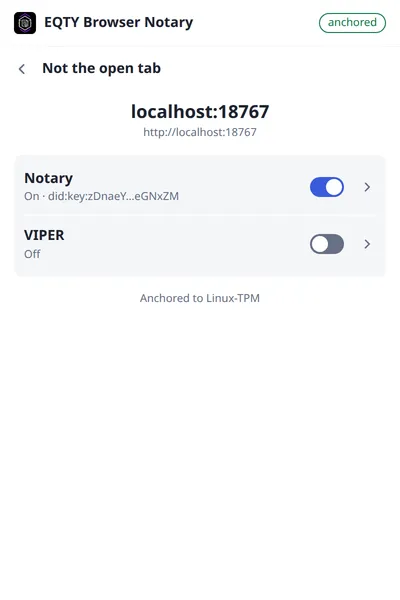
| Control | What it does |
|---|---|
| Notary switch | Lets the site use its key. On is the same standing grant as Always allow in the consent prompt; off revokes it, and turns VIPER off with it. |
| VIPER switch | Signs the site’s LLM requests with its notary key. Stays disabled until the notary is on. See VIPER. |
| Arrows | Open the site’s Notary or VIPER screen. Turning VIPER on from here opens its screen. |
| Grid icon (top right) | Sites: every site the extension knows, with its Notary and VIPER status. Opening one shows its switches and screens even when it is not the open tab. |
| Status pill | anchored, standalone or error, as below. |
The notary only serves secure contexts: on a page that is not https: or localhost, the
switches are disabled.
The Notary screen
The Notary screen draws the chain of trust behind the site’s key: the desktop notary’s hardware key, the notary key for this browser, and the site key, with the credential that links each to the next.
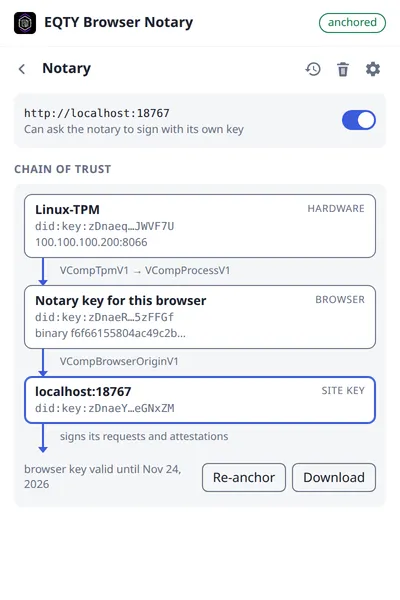
| Control | What it does |
|---|---|
| Re-anchor | Rebuilds the browser layer against the desktop notary. |
| Download | Downloads the browser key’s credential chain as a manifest. |
| History icon | Activity: the audit log, each sign and attest with the caller and time. Manifest downloads an attestation. |
| Trash icon | Deletes everything the notary holds for this site: its permission, its key and its notary activity. VIPER goes off, since it signs with that key. Click, then click Delete? within four seconds to confirm. The site gets a new key and DID the next time it is allowed. |
| Gear icon | Notary settings, below. |
The VIPER screen has the same history, trash and gear icons for VIPER; see VIPER.
The toolbar icon says the same at a glance:
| Icon | State |
|---|---|
 | Anchored: the chain goes down to a desktop notary’s hardware key. |
 | Standalone: the browser self-certifies, and what it says about itself is host-reported. |
Settings
The gear on the Notary screen opens Notary settings. It lists the Allowed sites: Revoke removes a site’s grant (VIPER too); Forget also deletes its key, so it gets a new DID next time.
| Setting | Default | Meaning |
|---|---|---|
| Desktop notary anchor | auto | auto: anchor when a desktop notary answers, otherwise standalone. required: refuse to sign without one (calls fail with PROVISIONING). off: always standalone. |
| Notary URLs | http://100.100.100.200:8066 http://127.0.0.1:8066 | Where to look for the desktop notary, in order: the well-known address, then loopback. |
| Max signatures / min / site | 120 | The rate limit per origin or extension. Over it, calls fail with RATE_LIMITED. |
VIPER has its own settings page; see VIPER settings.
The browser re-anchors every time it starts, because the desktop notary’s process credential is
bound to the browser’s PID. If the notary stops or the browser binary changes, the extension
rebuilds the browser layer and retries once; in auto mode it falls back to standalone.
Build from source
The build needs Rust with the wasm32-unknown-unknown target, wasm-pack, Node 22 or later,
and vcomp-notary-desktop checked out next to vcomp-notary-browser: the Rust workspace
path-depends on its crates.
git clone git@github.com:eqtylab-RND/vcomp-notary-desktop.git
git clone git@github.com:eqtylab-RND/vcomp-notary-browser.git
cd vcomp-notary-browser
npm install
npm run build:wasm      # crates/browser-wasm → extension/wasm
npm run build           # dist/firefox, dist/chrome
npm test                # Rust, Node and end-to-end (Chromium and Firefox) tests
npm run package         # dist/packages: unsigned .xpi and .zip, SHA256SUMS
                        # (npm run package -- chrome, or -- firefox, for one)
Load dist/firefox/manifest.json or the dist/chrome folder as in step 2.
Next: attest an agent action with the Quick Start.